See Profile Picture on Instagram Before Posting: Simple Methods
.svg)

If you have ever changed your Instagram profile photo and then immediately thought, “Why does it look cropped weird?” you are not alone. Instagram displays your image in a small circle in many places (comments, DMs, search results, suggested accounts), and each surface makes different details stand out or disappear.
The good news is that you can see profile picture on Instagram in a few quick ways before you commit, and you do not need to be a designer to do it. If you want the fastest way to reduce guesswork across devices and placements, a dedicated preview tool like SocialPreviewing can help you sanity-check the crop and thumbnail readability before you lock anything in.
What “previewing” an Instagram profile picture actually means
Instagram gives you a basic crop view when you select a new profile photo, but that is only the first step. A real preview answers three practical questions:
- Circle crop: Are your face, logo, or key icon fully inside the circular frame?
- Small-size legibility: Does it still look sharp and recognizable when it is tiny (like in a comment thread)?
- Device context: Does it look good on both iPhone and Android (and on desktop), including light and dark modes?
Even small visual changes can alter first impressions. Research shows people form impressions from faces extremely quickly (within milliseconds) based on limited visual information, which is one reason tiny crops matter so much in social contexts (Willis & Todorov, 2006).
If you are choosing between multiple options, it helps to see the same image as a tiny avatar and as a larger profile circle. Tools like SocialPreviewing are built specifically for that kind of “how will people really see this?” check.
Method 1: Use Instagram’s built-in crop screen (fast, but limited)
This is the simplest way to preview the circle crop before saving.
- Go to Profile.
- Tap Edit profile.
- Tap Change photo (or your current profile photo).
- Select your new image.
- On the crop screen, zoom and reposition so the important content stays centered.
When this method works best
- You are only worried about basic cropping.
- Your subject is centered and the image is not text-heavy.
The downside
Instagram’s crop screen does not show how your profile picture will look:
- next to a comment
- in DMs
- in search results
- in suggested accounts
Those are the places where profile pictures often do the most work. If you want a faster “all placements” preview without repeatedly uploading and reverting, using an external preview like SocialPreviewing can be the shortest path to confidence.
Method 2: Temporary upload + “real-world” checks (most accurate, still simple)
If you want the closest thing to a true preview, the most reliable approach is to temporarily set the new photo, check it in context, then switch back if needed.
Here is a quick, low-stress workflow:
- Save your current profile photo (so you can revert quickly).
- Upload the new profile photo.
- Check the image across the main Instagram surfaces below.
- Decide: keep it, adjust it, or revert.
Surfaces to check after you upload:
- Your profile header (main circle)
- Comments (leave a comment on a post and look at the tiny avatar)
- DM inbox (your avatar in the message list)
- Search (search your username and look at the result row)
- Suggested accounts (often the smallest, harshest view)
Tip: Do this on at least two devices (or one device plus desktop) because sharpness and contrast can feel different.
If you want to avoid switching photos back and forth (especially if you are doing a rebrand or managing client accounts), you can preview options outside Instagram first with SocialPreviewing, then upload only the winner.

Make it even easier with a “test account”
If you manage client profiles or you change branding often, consider maintaining a private “sandbox” Instagram account where you can test profile photos without touching the main account.
This is especially useful for:
- agencies and freelancers
- creators doing seasonal refreshes
- brands planning a rebrand
Another simple workflow is to shortlist a few candidate images and run them through SocialPreviewing first, then only test-upload the top one or two. It saves time and keeps your main account stable.
Method 3: The screenshot overlay method (great for designers and logos)
If your profile picture is a logo, badge, or text-based mark, you can avoid repeated uploads by checking the crop locally first.
A simple approach:
- Create a circle overlay in a design tool (Canva, Figma, Photoshop, etc.).
- Drop your image underneath.
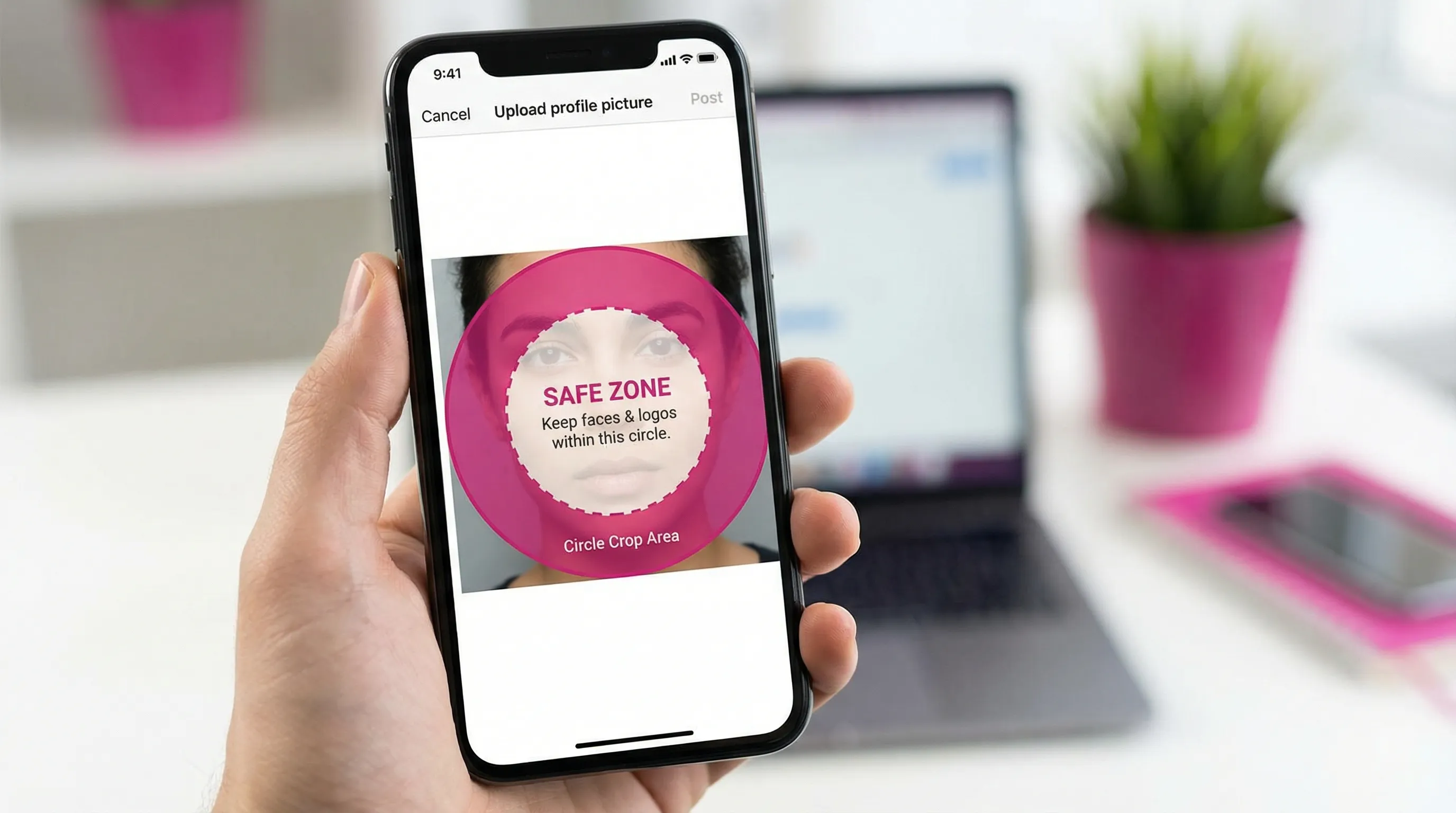
- Ensure your logo mark stays inside a safe area, with extra breathing room around the edges.
This helps because Instagram’s circle crop will clip corners aggressively, and logo designs often fail when they are too close to the edge.
If you are doing this often, it is worth validating your final export in a dedicated preview environment. For example, after you finish your overlay check, upload the candidate to SocialPreviewing to see how it reads as a tiny avatar in a realistic UI mock.
A practical “safe zone” rule
If you want a quick rule of thumb: keep your key subject (eyes, face, logo symbol) centered, and leave margin so nothing important sits near the circle edge.
Method 4: Use a dedicated preview tool (best for cross-device confidence)
If your goal is to see your profile picture the way other people will actually experience it, a preview tool is the fastest way to reduce guesswork.
With SocialPreviewing, you can upload your profile picture and preview how it appears across major platforms and devices (including Instagram) before you commit. This is helpful when:
- you want to compare multiple profile photo options side by side
- you are trying to keep a consistent brand look across Instagram, TikTok, X, LinkedIn, and Facebook
- you need to export mockups for client approval
SocialPreviewing includes a free preview, and if you want to run unlimited previews later, there is also a lifetime unlimited access option (one-time fee).
When a tool beats manual checking
Manual checking (temporary upload) is accurate, but it can be slow if you are iterating. A tool-first workflow is often quicker:
- Upload 2 to 5 candidates to SocialPreviewing.
- Eliminate anything that fails at thumbnail size.
- Upload only the best option to Instagram and do a final real-world glance.
That sequence reduces the amount of public-facing “trial and error” on your actual account.
Common reasons your Instagram profile picture looks “off”
Even when your image is technically high quality, Instagram presentation can create issues. The most common ones:
1) The subject is too small
If your face or logo takes up only a small portion of the square image, the tiny avatar version will be hard to recognize. Crop tighter than you think you need.
2) The background competes with the subject
Busy backgrounds may look fine full-size, but they turn into noise at small sizes. A clean background (or strong depth of field blur) tends to win.
3) Low contrast in dark mode
If your image is mid-tone heavy (gray hoodie, gray wall, soft lighting), it can flatten in dark mode UI. Add contrast through lighting, background choice, or subtle editing.
4) Tiny text becomes unreadable
Instagram avatars are not built for slogans. If you need text, keep it minimal (like a single initial), bold, and high contrast.
A quick way to catch all four issues is to preview at multiple sizes before uploading. Running a draft through SocialPreviewing can surface “looks fine full-size, fails as an avatar” problems immediately.
A 3-minute checklist before you post
Use this quick checklist to decide if your image is ready:
- Recognizable at thumbnail size: If you squint, can you still tell it is you (or your brand)?
- Centered for the circle crop: Eyes or logo mark are centered, not near the edge.
- Clean edges: No shoulders, icons, or text clipped by the circle.
- High quality source image: Not a screenshot, not overly compressed.
- Matches your goal: Friendly creator headshot, premium brand logo, professional freelancer portrait, etc.
If you want to make this checklist faster, you can do the “thumbnail test” in seconds by uploading the image to SocialPreviewing and reviewing the smallest avatar-style render first.
Bonus: keep your profile picture consistent across platforms (without losing local relevance)
Instagram rarely lives alone anymore. Many creators and brands run Instagram alongside TikTok, LinkedIn, and X, and audiences often cross-check profiles before following.
Consistency matters, but the real challenge is consistency at the avatar size across platforms, because each app has its own UI, padding, and background. Using a single tool like SocialPreviewing to preview the same profile image across networks can help you avoid surprises (for example, a logo that looks centered on Instagram but feels cramped on another platform).
If you are expanding into new regions on TikTok, consistency matters even more. For teams trying to reach authentic local audiences abroad, tools like TokPortal for posting TikToks to reach real local audiences can support international organic growth, but your profile visuals still need to look intentional and recognizable across every platform you touch.
Frequently Asked Questions
Can I see my Instagram profile picture before posting it? Yes. Instagram shows a crop preview when you select the image, but to truly see it in context (comments, DMs, search), you typically need to temporarily upload it and check multiple surfaces, or use a preview tool like SocialPreviewing.
Why does my Instagram profile picture look blurry after uploading? Common causes include starting with a low-resolution file, using an already-compressed image (like a screenshot), or uploading a file that gets compressed further. Start with a high-quality square image and avoid repeated re-exports. If you are unsure whether the issue is the file or the crop, previewing the avatar version first in SocialPreviewing can help you spot legibility problems early.
What is the best way to test an Instagram profile photo on different devices? Upload it temporarily and check on at least one additional device (or desktop). If you want a faster workflow, use a tool like SocialPreviewing that provides device-based previews before you publish.
Should brands use a logo or a face on Instagram? It depends on the account goal. Creators, freelancers, and service providers often benefit from a clear face for trust. Product brands usually perform better with a simple, high-contrast logo mark that stays readable in a tiny circle. Either way, the deciding factor is usually thumbnail clarity, which you can evaluate quickly with SocialPreviewing.
How often should I update my Instagram profile picture? Update when it no longer reflects your current look, brand identity, or positioning. Many people refresh seasonally or around major launches, but consistency is valuable, so avoid changing it so often that followers cannot recognize you. Before you switch, preview the new option next to the old one in SocialPreviewing to confirm the new photo is equally recognizable.
Preview it once, post it confidently
If you want to stop guessing and quickly see how your avatar will look across Instagram (and other major platforms) before you publish, try SocialPreviewing. You can run a free preview, make instant crop adjustments, compare options side by side, and export clean mockups when you need approvals.
Meta description: See your Instagram profile picture before posting. Learn simple preview methods and use SocialPreviewing to check crop, clarity, and device views.
.svg)
.svg)