Facebook Picture Looks Blurry? Fix Resolution and Compression
.svg)

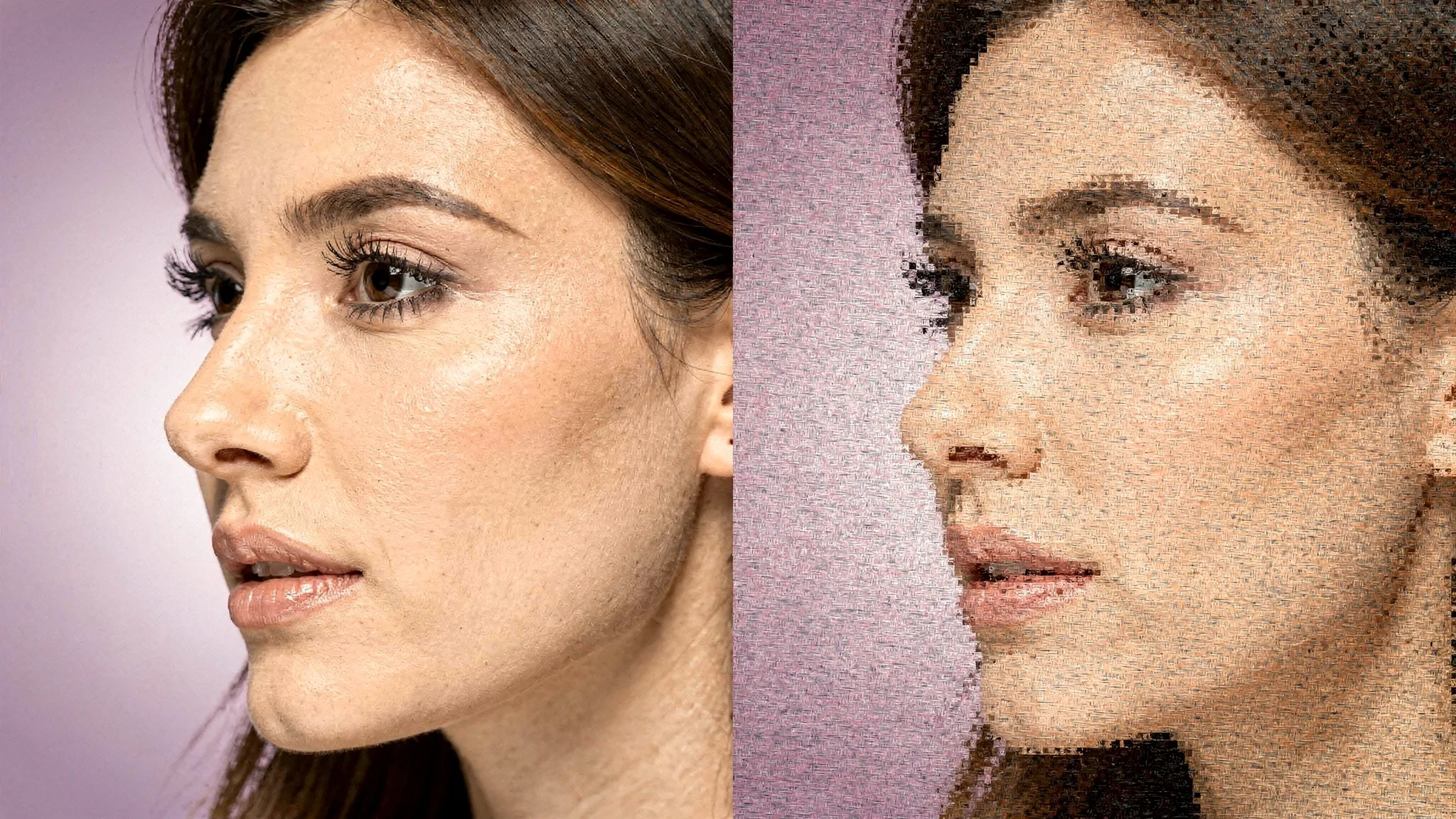
A Facebook picture can look crisp on your phone, then turn soft, pixelated, or “muddy” the moment you upload it. That’s almost always a resolution mismatch (too few real pixels for how Facebook crops and displays it) combined with compression (Facebook re-encoding your file to save bandwidth).
The good news is you can usually fix it in one pass, without buying new tools.
Why your Facebook picture looks blurry (the short version)
Facebook processes images to keep feed and profile pages fast. That processing often includes:
- Downscaling: If your image is larger than Facebook needs, it gets resized.
- Re-compression: JPEGs in particular can get re-encoded, creating artifacts around edges, hair, and text.
- Multiple display contexts: The same picture may appear in a circle, a square, a tiny comment avatar, and Messenger, each with different scaling.
If your source file is already small, heavily compressed, or exported with the wrong settings, Facebook’s second round of compression makes the blur obvious.
Step 1: Identify which “blurry” you’re seeing
Different symptoms point to different fixes.
It’s blurry everywhere (even when you tap to view)
This is usually low source resolution or heavy compression before upload.
Common causes:
- You uploaded a screenshot, a cropped image from a chat app, or a downloaded thumbnail.
- You exported from Canva/Photoshop at low quality.
- The file was saved multiple times as a JPEG.
It’s sharp when opened, but blurry as a profile icon or in comments
This is usually Facebook resizing plus a lack of edge contrast at small sizes.
Common causes:
- Your subject is too small in frame.
- Fine details (thin text, intricate logo marks) don’t survive reduction.
- The photo has slight motion blur that becomes noticeable when shrunk.
Your logo or graphic looks fuzzy, especially text
This is often a format issue. Logos with flat colors and text usually suffer when saved as a JPEG.
Step 2: Start from a clean, high-quality source file
Before you touch dimensions, make sure your starting image is not already “damaged.”
Quick checks:
- Avoid images pulled from Messenger, WhatsApp, or Slack. Those apps often compress. If you need event shots, pull the originals from the source gallery (for example, from a QR-based event gallery like Revel.cam’s instant event photo sharing where guests upload full-quality captures), not from forwarded copies.
- Avoid screenshots unless you have no alternative.
- If you edited it before, go back to the original and re-export once.
Step 3: Export with settings that survive Facebook compression
You don’t need a single “magic” size, but you do need enough pixel data for Facebook to resize cleanly.
Recommended export for a Facebook profile picture (safe, modern default)
- Square image: 800 x 800 px or 1080 x 1080 px
- Color profile: sRGB
- Keep the subject centered to survive circular cropping
Facebook will display your profile photo much smaller in many places, but uploading a clean, higher-resolution square gives Facebook better data to work with.
If you want Facebook’s own baseline numbers for display and minimums, Meta’s guidance is a helpful reference point (expect these to evolve): see the Meta Business Help Center.
Choose the right file type
Use the file format that matches the content:
- JPEG: Best for photos. Export at high quality (roughly 80 to 95) to reduce banding and blockiness.
- PNG: Best for logos, icons, and text-heavy graphics. PNG preserves crisp edges better.
If your “facebook picture” is a logo or wordmark, switching from JPEG to PNG is one of the fastest wins.
Don’t accidentally export “too small”
A common trap is designing at 1080 x 1080 in a tool, then exporting at 300 x 300 (or smaller) because the export menu defaults to “optimized for web.” That looks okay in a file viewer, but falls apart once Facebook recompresses it.
Step 4: Avoid double compression in your workflow
Double compression is when you compress, then Facebook compresses again.
Typical double-compression chain:
- You download a photo from Instagram or a website (already compressed)
- You edit and save as JPEG (compressed again)
- You upload to Facebook (compressed again)
How to avoid it:
- Edit from the original camera file when possible.
- Export once, then upload that final version.
- If you must resize, do it in one step, not repeatedly.
Step 5: Optimize for tiny avatars (where blur is most noticeable)
Even a perfectly exported file can look “off” at 32 px or 40 px because the visual message is too detailed.
Make the crop work at small sizes
For personal photos:
- Crop closer than you think, prioritize face and eyes.
- Increase exposure slightly if the image is dark.
- Add subtle contrast, so features don’t blend together after resizing.
For brand marks:
- Use a simplified version of the logo (icon, monogram, or mark without a tagline).
- Avoid thin strokes and small text.
- Add padding so the mark does not kiss the circular edge.
Apply light sharpening (only after resizing)
If you resize an image down and then sharpen, you often get a cleaner result than sharpening first. Keep it subtle to avoid halos.
Step 6: Check the two places Facebook surprises people: circle crop and device differences
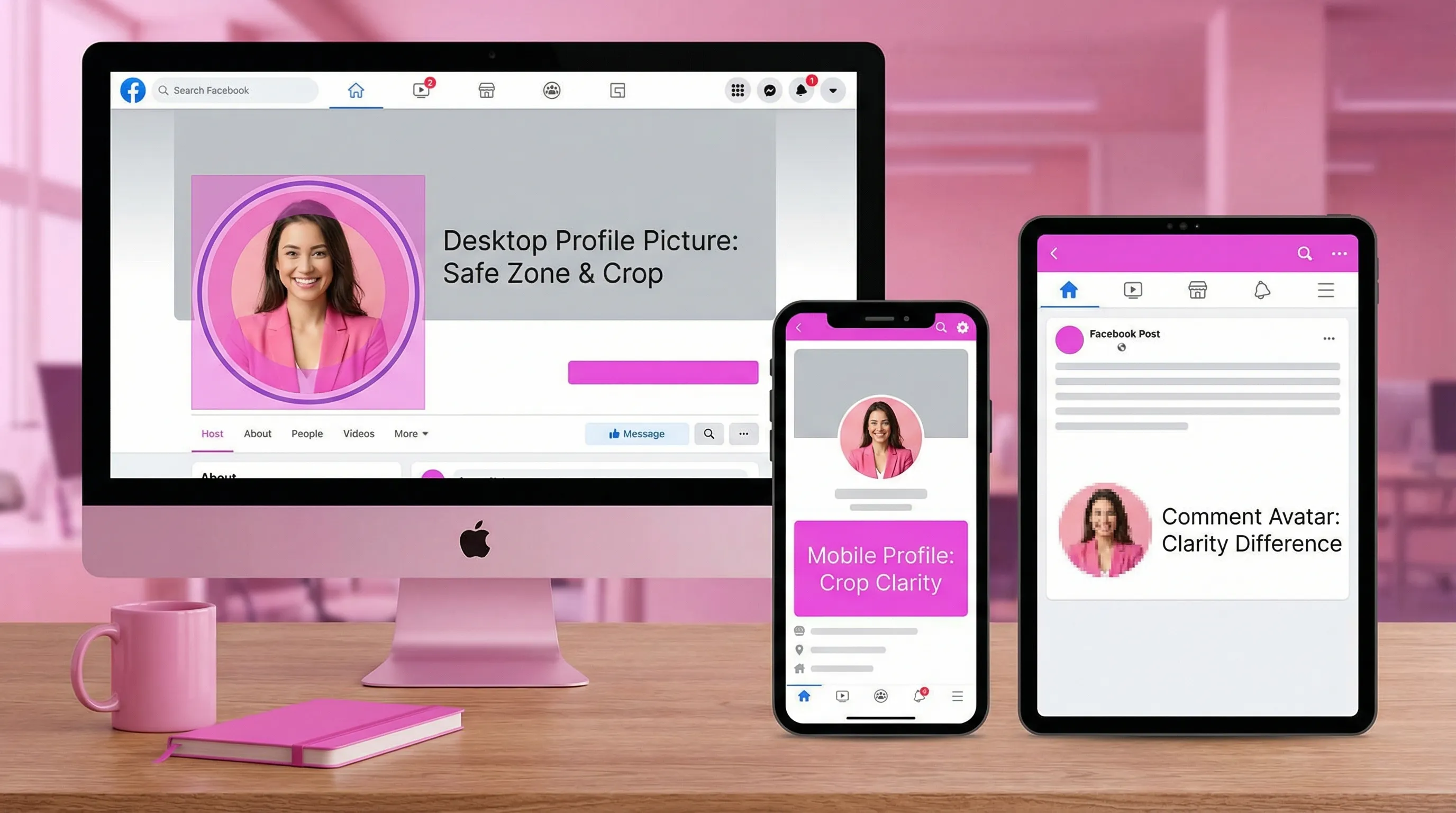
Facebook’s profile picture is frequently displayed as a circle, even if you upload a square. If important details sit near the edges, they can get clipped or look blurry from scaling.
The fastest way to catch this is to preview before publishing.
Preview the same picture across devices and placements
With Social Previewing, you can upload your profile picture (and cover) and preview how it will look across Facebook and other platforms, including different devices. This is especially helpful if:
- You are choosing between two exports (JPEG vs PNG)
- You want to compare close-crop vs wide-crop
- You need to export mockups for a client approval
Quick fix checklist (use this when you’re in a hurry)
- Re-export from the original source, not a screenshot
- Use 800 x 800 or 1080 x 1080 square
- JPEG for photos, PNG for logos and text
- Keep subject centered for circular crop
- Avoid saving the file multiple times as JPEG
- Preview on desktop and mobile before committing
Frequently Asked Questions
What size should I upload so my Facebook picture doesn’t get blurry? A clean square like 800 x 800 px or 1080 x 1080 px typically holds up well after Facebook resizes and compresses it.
Why does my Facebook profile picture look blurry only in comments? Comment avatars are tiny, so Facebook downscales aggressively. If your crop is wide or low-contrast, details disappear. Crop tighter and increase contrast slightly.
Should I use PNG or JPG for a Facebook profile picture? Use JPG for photos, use PNG for logos, icons, and text. PNG usually keeps edges sharper for graphics.
Why does my image look sharp before upload but blurry after? Facebook re-encodes files to reduce size. If your export was already compressed or too small, the extra compression makes blur and artifacts obvious.
How can I tell if the blur is from my file or from Facebook? Open your exported image at 100 percent on your computer. If it’s already soft, fix the export. If it’s sharp locally but soft on Facebook, adjust format, resolution, and crop to survive re-encoding.
Preview it before you publish (and stop guessing)
If you’re iterating on a new Facebook picture for yourself or a client, a quick preview step saves time and prevents “why is it blurry?” re-uploads. Try Social Previewing to test profile and cover images across platforms, compare versions side by side, and export mockups when you need approvals.
Get started at SocialPreviewing.com.
.svg)
.svg)